Physical Address
304 North Cardinal St.
Dorchester Center, MA 02124
Physical Address
304 North Cardinal St.
Dorchester Center, MA 02124

An electronic program guide helps you see what is on now and next. Discover how listings reach your TV app, why schedules can be wrong, and which checks to make before changing your setup.
What is an EPG? An EPG, or electronic program guide, is an on-screen schedule that shows what is playing on television channels and what is coming next. Depending on the service, it may also include program descriptions, episode details, categories, and listings for later days.
You have probably seen one as a grid of channels and time slots. Select a program, and the app may show more information or offer an available action, such as watching the channel or setting a reminder.
However, a guide is not the same thing as a television subscription, a video stream, or a replay library. Understanding those differences helps when the channels play but the schedule is empty, or when a listing does not match the program on screen.
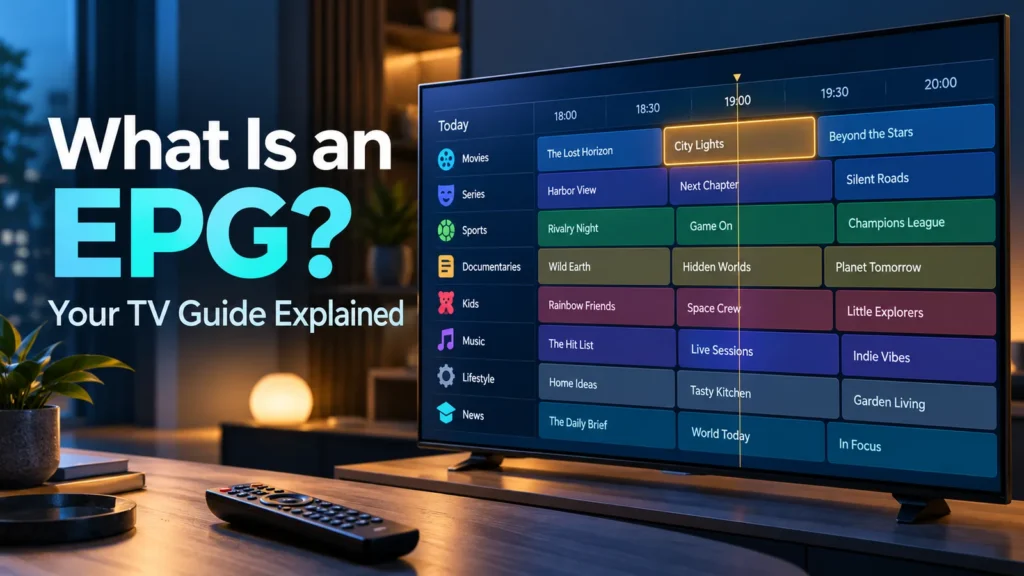
An electronic program guide organizes programs by channel and time. Some interfaces use a full grid, while others show a smaller “now and next” panel when you change channels.
A useful entry answers three basic questions: which channel is this, what program is scheduled, and when does it start? Additional details can help you choose between several programs without opening every stream.
Imagine a fictional channel called Horizon Nature. Its guide shows Coastal Wildlife from 18:00 to 18:30, followed by Mountain Trails at 18:30. Selecting the first entry might reveal a short description or episode number.
This example is invented to illustrate the layout; it is not a real channel recommendation or broadcast schedule. The important point is that the entry describes a planned broadcast. It does not contain the video itself.
EPGs are used beyond IPTV, including other television delivery systems. If you are still learning the underlying terminology, our introduction to IPTV explains the broader viewing setup.
When you select a live channel, the app needs access to its video. When you browse the guide, it needs information about that channel’s schedule. These functions may be packaged together, but they perform different jobs.
That explains a common situation: a channel plays normally while its guide row says “No information.” The missing schedule is not, by itself, evidence that the video source or internet connection has completely failed.
The reverse can also happen. An app may retain previously loaded listings even when a channel no longer plays. A populated guide therefore does not prove that your account still has access to the content.
| Item | Main purpose | What it does not guarantee |
|---|---|---|
| Channel list or playlist | Identifies available entries and, in supported setups, stream locations | Complete program schedules |
| EPG | Describes scheduled programs and their times | Permission or ability to watch every listing |
| Live stream | Delivers the current video and audio | A detailed guide or replay archive |
| Catch-up library | Offers eligible past programs for playback | Every program shown in an old schedule |
Before troubleshooting, identify which part is failing. That small distinction can prevent unnecessary reinstallations or purchases.
Your viewing app needs schedule information from somewhere. An official service may manage it automatically. Other supported setups may let you select a guide source or import a file.
Begin with the instructions from the service you actually use. If its app already supplies the guide, adding an unrelated source can make the setup harder to understand rather than improve it.
XMLTV is one format used to exchange television listings. The XMLTV project’s format definition describes channel records and program entries with fields such as titles, times, and descriptions. It is schedule information, not a video playlist.
Not every EPG uses XMLTV or exposes a guide URL to the viewer. Some apps obtain schedules through their own service integration. You do not need to manually configure a file unless your supported setup calls for it.
Use a source supplied or supported by your authorized service, and check any conditions attached to third-party guide data. A functioning guide link does not establish that the television streams associated with it are authorized.
If you are unsure who supplies the information, our IPTV player vs provider comparison explains the difference between the viewing software and the content service.
A guide entry is useful only when it belongs to the channel you are watching. If a news channel displays a film schedule, refreshing the same data repeatedly may not solve the underlying mismatch.
In configurable players, matching may rely on channel identifiers or a manual assignment. The correct method depends on the app and the data source; there is no universal mapping screen.
Consider two regional versions of a channel with almost identical names. They may carry different local programs or show the same program at different times. Picking the familiar-looking name can still attach the wrong schedule.
When one row looks wrong, compare the channel’s exact identity and regional feed with the service’s own information. Check whether the problem affects only that row or several similar entries.
If your app permits manual changes, record the existing assignment before editing it. Test one channel first. Avoid replacing the entire guide configuration when the evidence points to a single mismatch.
A channel logo can be another clue, but it is not a reliable identifier on its own. Similar feeds may share branding, and artwork can be outdated.
A program can appear under the correct channel but at the wrong time. Start by checking the device’s date, time, and time zone against your actual location.
Guide timestamps and local display settings must be interpreted consistently. Seasonal clock changes can also expose errors. A fixed manual adjustment that looked right earlier may no longer match the current schedule.
Compare several listings before applying an offset to the whole guide. If only one channel is wrong, investigate its regional feed or source data first. If many channels show the same shift, a shared time-setting issue becomes a useful possibility to check.
Some players offer global or per-channel adjustments. For example, the official Kodi IPTV Simple project documents guide configuration and time-shift options. Those controls are specific to that software; do not assume another app uses the same settings.
Schedules can also change after publication. A live event running late may push the following program beyond its listed start time. If the broadcaster changes its schedule but the guide has not refreshed, the displayed entry may temporarily be inaccurate.
Check the broadcaster’s current schedule before making a permanent adjustment. A one-off delay and a persistent time-zone error need different responses.
Scrolling backward through a guide can make it look as though every past program is available on demand. Often, you are simply viewing historical schedule information.
Catch-up requires the service to make an eligible past program available and the app to support that playback method. Availability may differ by channel, program, region, and account.
Recording is another function. It needs a supported recording arrangement, which may involve local equipment or a service-managed feature. An entry in the guide can help select a program, but the listing does not create a recording by itself.
Likewise, a reminder is an alert or prompt, not a saved copy of the show. Check what the selected action actually does before relying on it for an important broadcast.
Try one supported feature with nonessential viewing first. Confirm whether the program opens, whether recording is available under your plan, or whether a reminder appears as expected. Do not infer capability from a button alone.
A colorful grid is not necessarily a useful guide. Evaluate the channels and information you actually need rather than choosing a service because its screenshots show a large number of rows.
First, check coverage. Do your regular channels have listings? Are today’s programs present? Can you browse far enough ahead for your viewing plans? The available period depends on both the data source and the app’s handling of it.
Next, check usability. Read the guide from your normal seating position and navigate using the actual remote. A layout that looks attractive on a phone may be awkward on a television.
Some sources provide only basic information. An empty description or missing artwork does not necessarily mean the whole guide is broken.
For the rest of your viewing setup, use our IPTV compatibility checklist. It covers device and playback checks that a working guide cannot confirm.
Begin with a small diagnosis rather than changing several settings at once. Open a familiar channel, inspect its guide entry, and note whether video, schedule information, or both are affected.
| What you see | Useful first check | Avoid assuming |
|---|---|---|
| Video works, but every guide row is empty | Check guide-source configuration, update status, and service notices | That you need another television subscription |
| Only one channel has no listings | Check whether the source covers that exact channel and feed | That the whole app is incompatible |
| A channel shows unrelated programs | Inspect its guide association and regional version | That a time offset will correct the content |
| Several channels are shifted by the same amount | Compare device time settings and guide adjustments | That every affected channel needs a separate change |
| Listings stop after today | Check supplied coverage and the most recent successful update | That every service includes a multi-day guide |
| Yesterday’s program is listed but will not play | Check whether catch-up is actually offered for it | That historical listings guarantee replay |
If the app provides a guide refresh command, follow its documentation and allow the process to finish. Look for an error or last-update indicator instead of repeatedly pressing the button.
Do not clear all app data or remove your account as an opening step. Those actions can erase useful settings. Before a reset recommended by official support, record your configuration and use any supported backup or export option.
Write down the app name, device, affected channel, local time, displayed program, and program actually playing. Add the last successful guide update if the app shows one.
For example: “On this device, the video plays, but one channel shows yesterday’s listings; the other channels show today’s schedule.” That is more useful to support than “EPG broken.”
Make one supported change, refresh if instructed, and compare the same channel again. If you cannot establish the source of the error, send the record through official support rather than replacing working parts of the setup.
Hide account details and private guide addresses in screenshots. Some addresses contain credentials or tokens that should not be shared publicly.
EPG stands for electronic program guide. It is a digital television schedule that shows programs by channel and time, sometimes with descriptions, episode details, or additional viewing actions.
Often, yes. If the app and service allow direct channel selection, video can play without schedule information. You will have less guidance about what is currently on or coming next.
No. An M3U playlist lists media entries and locations, while an EPG describes scheduled programs. Some supported setups connect the two, but the guide does not replace the video source.
The guide may not have loaded, the source may lack those listings, or channel associations may be missing. Check guide configuration and update status before assuming video playback or your subscription has failed.
Not automatically. A guide may show past listings without offering replay. Catch-up depends on the content service, the specific program, your account, and the app’s supported features.
It depends on the setup. Guide information may be included with a service, available through an authorized free source, or sold separately. Confirm coverage, compatibility, and terms before purchasing guide data.
What is an EPG? It is your guide to scheduled television, not a guarantee of channel access, replay, or recording. A useful guide combines relevant coverage, correct channel associations, readable presentation, and current information.
Open your guide and check three channels you watch regularly. Compare their current programs, upcoming entries, and displayed times. If something is wrong, use the diagnostic table above to choose the next check without disrupting a working setup.