Physical Address
304 North Cardinal St.
Dorchester Center, MA 02124
Physical Address
304 North Cardinal St.
Dorchester Center, MA 02124

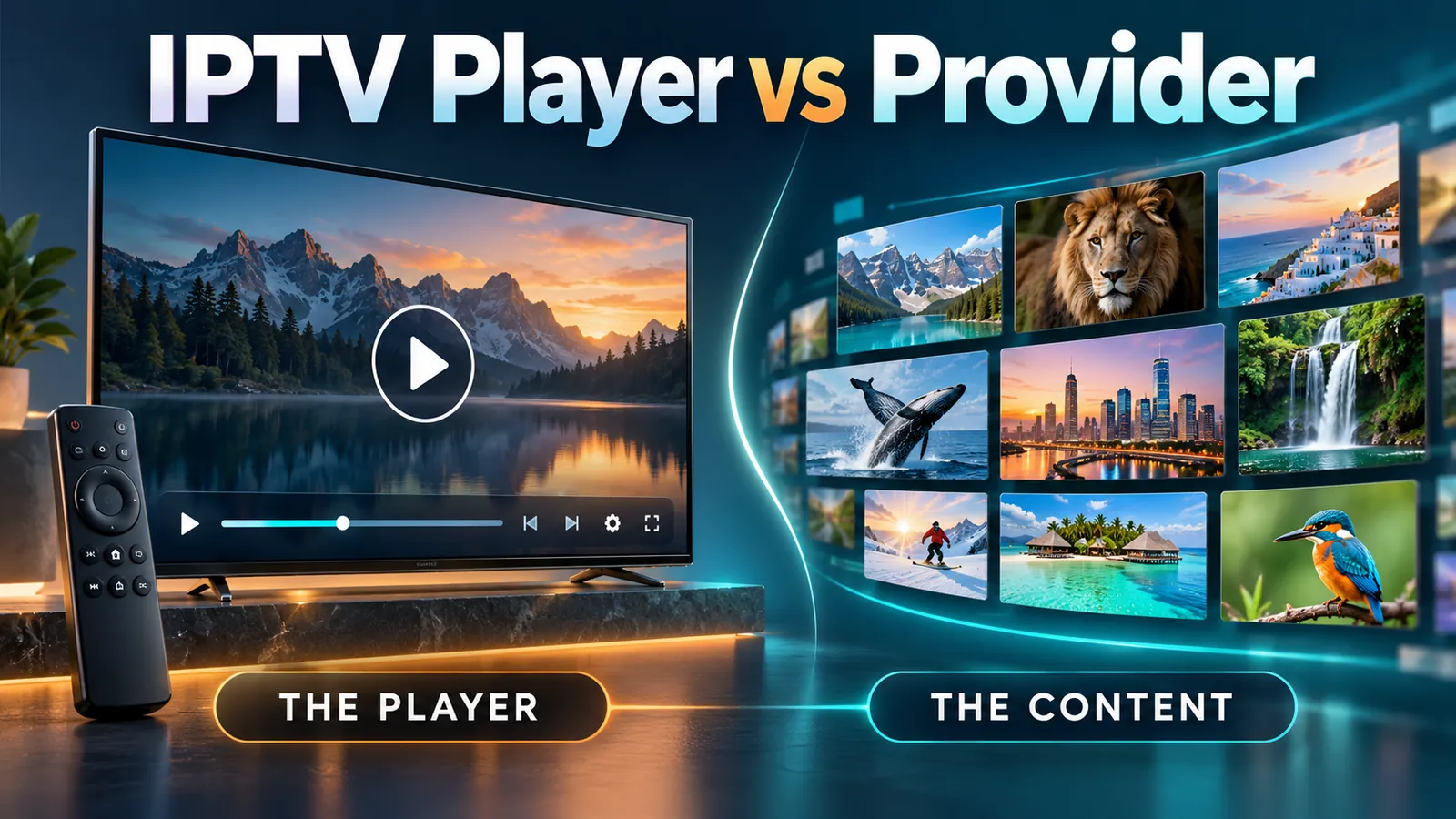
An IPTV app and a television service solve different problems. Learn who supplies channels, what activation pays for, and how to choose a compatible setup without paying for the wrong product.
IPTV player vs provider comes down to two different jobs: the player is the software you use to watch, while the provider supplies access to television content. Some services combine both in one official app, so you do not always need a separate player or two subscriptions.
This distinction becomes important when an app opens successfully but shows no channels, or when you pay an activation fee and still cannot watch anything. The payment may have unlocked software features without purchasing access to a television service.
This guide explains seven essential differences, what to check before paying, and who to contact when something stops working. If the terminology is new to you, start with our beginner’s explanation of what IPTV is.
| Question | Standalone player | Content provider |
|---|---|---|
| What does it supply? | Software for browsing and playing compatible streams | Access to a defined selection of content |
| What might you pay for? | App activation, features, or a software subscription | A viewing plan, rental, or other content access |
| What account does it use? | Possibly an app account or device activation | A service account or another authorized access method |
| What determines compatibility? | Device support and playback capabilities | Permitted apps, formats, DRM, and account rules |
| Who controls channels? | Usually displays what the source supplies | Controls the catalogue offered through the service |
| What affects quality? | Playback engine and device integration | Source quality and delivery infrastructure |
| Who handles support? | The developer handles app-specific problems | The service handles account and content-access problems |
These are functional roles, not a rule that every product belongs in only one column. An official streaming app can contain the player and provide access to its own service.
A standalone IPTV player gives you an interface for opening compatible streams. Depending on the app, it may include a channel list, favorites, a search function, an electronic program guide, or controls for audio and subtitles.
A provider makes content available through a service. That might be a broadcaster’s own platform, a television operator, or another authorized distributor. Its catalogue and access conditions determine what you can watch.
VideoLAN describes VLC as a free, open-source multimedia player that supports files and various streaming protocols. That illustrates the playback role: software can open supported media without selling you a television package.
However, support for streaming protocols does not mean a player can open every paid television service. Some services require their own app, protected playback, or specific approved devices.
Before installing anything, ask a simple question: “Does this product provide content, play content I already have access to, or do both?” The answer should be clear in the official product description.
Player fees and service fees can look similar at checkout. Both may use words such as premium, subscription, or activation. Those labels alone do not tell you what the purchase includes.
An app payment might remove advertising, enable multiple playlists, or unlock a particular interface feature. A service payment might grant access to a specific package of channels for a defined period. Neither purchase automatically covers the other.
Imagine paying a one-time fee to activate a player on your television. The app confirms activation, but its channel list is empty. If the purchase covered only the player, the software may be working exactly as described: it still needs a compatible, authorized content source.
This is an illustrative situation, not a report of a product we tested. The practical lesson is to read the checkout page before paying and keep the receipt afterward.
A “lifetime” software offer should not be interpreted as lifetime access to television content. Confirm what lifetime refers to in the seller’s terms.
An app account may manage your license, preferences, or device activation. A provider account may control your viewing plan and permitted sessions. Entering the first account into a field intended for the second will not connect the service.
Depending on the supported setup, a player might request a playlist URL, a file, a service address, or login details. An official service app may instead use an email login or an on-screen pairing code.
An M3U playlist is a list of media entries and addresses. It does not, by itself, establish ownership of a subscription or permission to redistribute the listed material. A playlist can also become outdated even while the player continues to work.
Use only connection information supplied through a source you are entitled to access. Do not assume an account can be exported into another app merely because both products mention IPTV.
Treat playlist addresses and screenshots carefully. Some URLs contain account identifiers or access tokens. When requesting help publicly, hide the full address, password, email, and any device identifiers that are not needed to explain the problem.
An app being available for your television is only the first check. It must also support the service’s permitted connection method and the media format used for playback.
Compatibility can depend on the operating system, app version, video and audio codecs, and digital rights management, commonly called DRM. A generic player cannot be assumed to handle a protected service that requires an approved app.
Two televisions from the same manufacturer can use different operating systems or have different app support. Look for the model or operating-system version in the official compatibility information.
Next, check the provider’s documentation. If it tells you to use its official app, start there. Buying a more expensive standalone player does not remove a service restriction.
Finally, distinguish installed devices from simultaneous streams. A service may let you register several devices but limit how many play at once. The player’s device license and the service’s viewing limit are separate conditions.
Before purchasing hardware, test with an existing supported device when the service offers a suitable free option or trial. Check cancellation terms before entering payment details.
A standalone player may organize or hide channels, but it usually cannot add content that the source does not supply. A favorites list changes your view of a catalogue; it does not expand your access rights.
Availability can also vary by country, account package, and the service’s distribution arrangements. This matters for worldwide readers: an app might be downloadable in your region while particular content remains unavailable.
For example, Plex’s free live TV FAQ describes a free service in supported regions without a Plex Pass requirement. Consult its current regional information rather than assuming a worldwide guide means identical availability everywhere.
That example also shows why “provider” does not necessarily mean “paid subscription.” Some content services use advertising or other funding models.
Look for the broadcaster’s own viewing information or an identifiable distributor with clear service terms. A large channel count, an app-store listing, or a working demonstration does not independently establish authorization to distribute every listed channel.
A provider can supply a stream that looks poor even in a capable player. Equally, a good source may stutter on a device that struggles to decode it or on an unstable connection.
The visible symptom alone rarely identifies the cause. Buffering may involve the home network, internet connection, delivery service, device, or app. Changing providers immediately can leave the actual issue untouched.
Start by noting whether the problem affects one channel or everything. Check whether it occurs only on one device. If the service supplies an official app, compare the same content there when your plan permits it.
A result that works in one app but fails in another is evidence worth investigating, not proof of a single cause. The apps might request different streams or use different playback methods.
Record the device, app version, approximate time, and error message. Avoid testing several devices simultaneously if doing so would exceed your account’s stream limit and create another failure.
Separating player and provider saves time when contacting support. The app developer generally cannot renew a separate content subscription. A provider may not control a third-party player’s purchase activation.
| Symptom | First check | Likely support starting point |
|---|---|---|
| App payment succeeded, but premium features remain locked | Correct app account, receipt, and activation instructions | Player developer or purchasing platform |
| Subscription shows expired | Provider account status and renewal receipt | Content service |
| App crashes before you open a channel | App version, device support, available storage | Player developer |
| One channel fails across supported apps | Service notices and channel availability | Content service |
| Many unrelated streaming services buffer | Connection stability and other household traffic | Home-network troubleshooting, then internet provider if needed |
| Video works, but guide listings are missing | Guide source, refresh settings, and service documentation | Player or provider, depending on who supplies the guide |
This table suggests where to begin; it is not a diagnosis. Send the smallest useful set of details through official support channels, and never post payment-card data or account passwords.
Write down these answers before choosing a setup. If you cannot answer the first two, pause the purchase and clarify them with the seller.
For example, if an authorized broadcaster already offers an app for your TV with the programs you need, your initial setup may be as simple as using that app. Adding an unrelated player would only make sense if the broadcaster supports it and it solves a specific problem.
If you already have a supported external source, choose the player around that source and your device. Do not buy an app first and assume that suitable content will come with it.
A standalone IPTV player usually requires a separate content source. Some products combine playback with a streaming service, so read the official description. An app activation fee alone does not mean channels are included.
No. Some services include their own app, and some authorized sources are free to watch. Your costs depend on the specific service, device, and software features you choose.
Sometimes. The provider must permit external players, and the replacement must support its access method and your device. Services that require an official app may not support a generic replacement.
Activation may only unlock the app. Check whether a separate content source is required, whether you entered the correct connection information, and whether your service account is active. Do not buy another activation before checking the first receipt.
Not necessarily. Different software may improve a playback problem, but it cannot guarantee a fix for an unstable connection, an overloaded source, or unsupported hardware. Identify the cause before paying for another app.
No. Successful playback only shows that a stream can be reached and played. Verify the source through official broadcaster or distributor information and check its availability conditions for your country.
The practical lesson in IPTV player vs provider is to know what each product supplies before paying. Choose an authorized content source, confirm your region and device, and use its supported app or connection method.
Before your next purchase, complete the seven-point checklist above. It will help you separate software fees from viewing access and identify the right support contact if a problem appears.