

A VLC network stream lets you play compatible media from a network address instead of opening a file saved on your computer. On the Windows desktop version, the basic route is Media → Open Network Stream → paste the URL → Play.
The clicks are straightforward; choosing the right input is where beginners often get stuck. A broadcaster’s homepage, a subscription login, and a direct stream address are different things. This guide explains what you need, walks through seven setup steps, and helps you interpret common failures without changing settings at random.
Table of Contents
Quick Answer
- Open the official VLC desktop player on Windows.
- Get a compatible stream address from a source that permits external playback.
- Select Media → Open Network Stream.
- Paste the complete address into the network URL field.
- Choose Play.
- Check the picture, sound, and available subtitle tracks.
- Keep a private record of what works before making further changes.
Use this procedure for an authorized source, such as a stream you operate or one its publisher explicitly makes available for compatible players. It does not unlock paid channels or replace a service’s required official app.
Before You Start: Know Which Link You Have
You need VLC installed, a working network connection, and an address that the player can use. Most importantly, the source must support the viewing method you are trying.
If a service only provides an account for its own app, ask whether external players are supported. Do not assume you can paste its website address into VLC and sign in as you would in a browser.
A webpage is not necessarily a media address
A page containing a video can also contain menus, scripts, login checks, and a browser-specific player. Its address may identify the page rather than the video resource.
| What you have | What it represents | What to do |
|---|---|---|
| A broadcaster’s homepage | A website entry point | Follow its official viewing instructions |
| A publisher-provided direct media URL | A media resource or supported stream | Confirm external playback is permitted, then try VLC |
| A playlist URL | A collection or description of media resources | Check that the format and listed sources are supported |
| An email and password | Account credentials | Use the service’s documented access method |
| A local video file | Media already stored on your computer | Use Open File rather than treating it as a web address |
A filename ending in M3U or M3U8 can provide a clue about the format, but an extension alone does not confirm compatibility or authorization. Some valid stream URLs have no familiar extension at all.
1. Install or Open the Official VLC Desktop Player
Use VideoLAN’s official VLC website to find the Windows download. Avoid choosing a similarly named product simply because it appears above the official result in a search.
VLC is a free, open-source media player. Installing it does not include a television subscription or a ready-made catalogue of paid channels.
If VLC is already installed, open it and note the version in its About information. This guide follows the Windows desktop interface documented for VLC 3.0; wording and layout can differ in other releases or interface languages.
Start with the existing default playback settings. There is no need to apply a collection of “best IPTV settings” before you have tried a supported source.
If the product roles are unclear, read our IPTV player vs provider comparison before paying for another app or service.
2. Obtain a Supported, Authorized Stream Address
Get the address through the publisher’s documented route. A useful source should explain whether it supports external playback and whether the link has access conditions or an expiry time.
For a first attempt, choose one source rather than a large collection of unknown links. That makes it easier to tell whether you have opened the intended content and whether a later problem affects one item or the whole setup.
Do not reuse a stranger’s account details or assume that a publicly shared playlist is authorized. If a service requires its own protected player, follow that service’s instructions.
There is no universal test channel included in this guide. Public endpoints can change, and publishing an unverified channel link would not help you establish a dependable setup. Use your own permitted source or a publisher’s current documented example.
3. Open the Network Stream Dialog
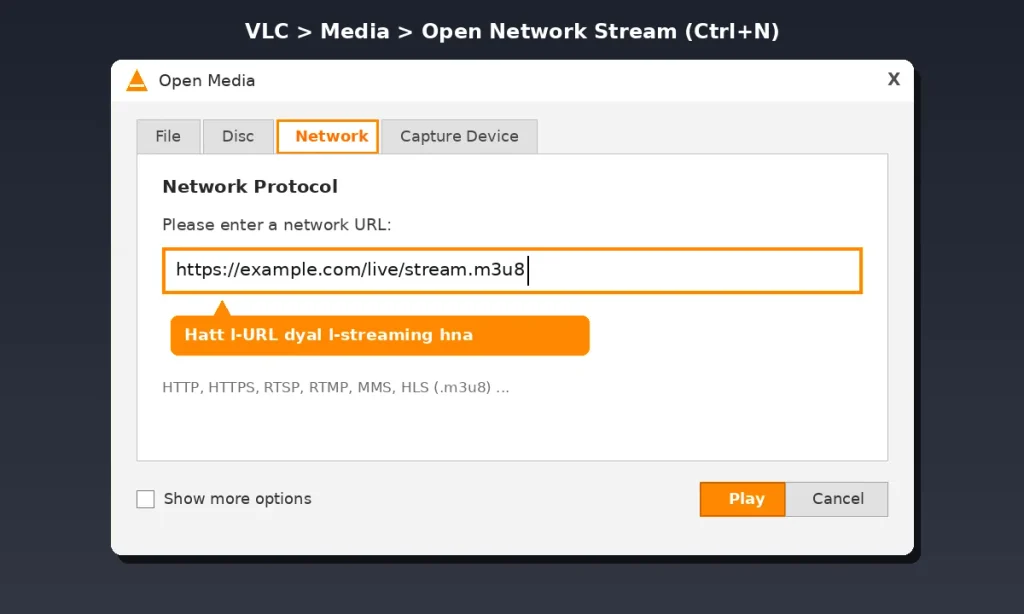
In VLC’s Windows desktop window, select Media, then Open Network Stream. The Open Media window should appear with the Network tab selected.
This route is documented in VideoLAN’s instructions for playing a network stream.
Make sure you are using the network input field. Opening a disk, a capture device, or a local file is a different action. If your interface looks different, confirm you are using the desktop edition and look for the equivalent network-opening option.
Keep the main VLC window visible while testing. You will want to see any message that appears after starting playback.
4. Paste the Complete URL Without Altering It
Copy the address supplied by your source and paste it into the network URL field. Check that you did not include an introductory label, quotation marks, or an accidental line break.
Long addresses can contain query parameters after a question mark. These may carry information the server needs, so do not shorten the address simply to make it look cleaner.
If a link was copied from an email or messaging app, check that you copied the actual destination rather than a shortened display label. Return to the original source if you are uncertain.
Some addresses contain passwords, account identifiers, or temporary tokens. Treat them as private. Do not publish a screenshot of the filled field or paste the full address into a public troubleshooting post.
A link can also expire. If yesterday’s address stops working, obtain a fresh one through the supported method before assuming VLC needs to be reinstalled.
5. Choose Play and Observe the Result
Select Play to begin receiving the media. For this task, you are watching a source, not setting up VLC to broadcast content to other devices.
Allow the player to respond before repeatedly opening the same address. Observe whether you get video, audio only, a playlist, an access prompt, or an error. Those outcomes point to different next checks.
If the input opens a list, inspect the available entries and select the intended item. A playlist loading successfully does not guarantee that every resource inside it is reachable.
For a live source, the experience may differ from a local film. There may be no fixed duration, and seeking or resuming from an earlier point may be unavailable. Judge success by the intended stream, not by whether every control behaves like file playback.
6. Check Sound, Subtitles, and Basic Controls
Once playback begins, confirm that the picture belongs to the expected source and that the audio reaches your normal speakers or headphones.
If the picture works but sound is missing, check VLC’s mute and volume controls, your Windows output device, and any available audio tracks. A computer can send sound to a connected display or headset that you are not currently using.
Test what the stream actually supplies
Use VLC’s Audio menu to inspect available tracks and output options. Use the Subtitle menu to inspect supported subtitle tracks or add a compatible subtitle file you are entitled to use.
The player cannot select a language or subtitle track that the source does not provide. Missing subtitles may therefore be a source limitation rather than a failed installation.
For basic viewing, VLC’s documented shortcuts include F for fullscreen, Esc to leave fullscreen, and Space for play or pause when the player handles the key. Live-stream pause and resume behavior still depends on the source.
Check these features before connecting additional equipment or changing advanced options. A simple working configuration gives you a useful starting point.
7. Record a Working Setup Before Changing Anything
Write down the VLC version, the source’s name, the date checked, and whether video, audio, and subtitles worked. Keep private access details separate from notes you might share.
For example: “The authorized test source played video and English audio on this Windows computer; no subtitle track was offered.” This is an illustrative note, not a claim that we performed that test.
If you later change an output setting or switch networks, compare the same source again. Change one variable at a time so you can connect an outcome to a particular action.
You do not need to save credentials in a publicly shared playlist to make the setup convenient. Use the service’s supported access method and consider whether a saved address will remain valid.
VLC Network Stream Troubleshooting by Symptom
When playback fails, avoid treating every error as a codec problem. Begin with the address, access conditions, and scope of the failure.
| Symptom | First useful checks | Do not assume |
|---|---|---|
| The source cannot be opened | Complete URL, supported format, expiry, and access conditions | That reinstalling VLC fixes an unavailable source |
| A playlist appears but one entry fails | The individual entry and its current availability | That every item in the list is broken |
| Picture appears without sound | Mute, output device, and available audio tracks | That you need a new subscription |
| Sound plays without a picture | Whether the source includes video and whether playback is supported | That every audio-only result is an application fault |
| Playback starts but pauses repeatedly | Connection stability, competing traffic, and source performance | That one buffer setting guarantees a fix |
| The website works but VLC does not | Whether the service actually supports external players | That the webpage and direct stream use the same access method |
What “cannot open MRL” tells you
MRL means media resource locator: the location VLC is trying to open. The message describes a failed attempt to access a resource; it does not identify one universal cause.
Check for a typing error, expired link, inaccessible source, or unsupported access method. If the service restricts playback to its own app, use that supported route instead of trying to work around the restriction.
Compare the source, player, and connection separately
A local video file you own can help check basic player output, but it does not test network access. A second authorized network source can provide another comparison, but different sources may use different formats.
If multiple unrelated online services struggle on the same computer, investigate the connection. If only one supplied address fails, start with that source’s support information.
Do not disable your firewall or antivirus as a blanket fix. If you receive a specific security notification, inspect the application and follow the relevant official guidance. Avoid installing random codec packs or replacement executables suggested by an unknown download page.
For support, record the exact error and the conditions under which it appears. Remove credentials and tokens before sharing logs. A short, specific report is more useful than a full unredacted screen capture.
What This Setup Does Not Include
Opening one stream does not create a complete television package. Channel schedules, account management, recording, and catch-up depend on additional features and the service you use.
It also does not establish that another device will behave identically. An app on a television may support different formats or access methods from VLC on your computer. Use our IPTV compatibility checklist before buying hardware around a single successful test.
If a service already provides a supported official app that meets your needs, VLC is an alternative only where the service permits it. There is no benefit in adding another player merely because the word IPTV appears in the product description.
Frequently Asked Questions
Is VLC free for opening network streams?
Yes, VLC is free software. That does not make the source free: a content service may have its own access conditions or subscription. The player and the source are separate parts of the setup.
Where do I paste a stream URL in VLC on Windows?
Select Media, then Open Network Stream. Paste the supported address into the Network tab’s URL field and choose Play. Use the complete address supplied through your source’s authorized method.
Can I paste any website link into VLC?
No. A webpage address is not necessarily a playable media resource. Some sites require their own browser player, authentication, or protected playback. Follow the publisher’s supported viewing instructions.
Does VLC come with IPTV channels?
No television subscription is included with VLC. You need your own authorized source. Installing the player or importing a list does not establish a right to access the channels in it.
Will increasing network caching fix every buffering problem?
No. A buffer adjustment cannot repair an expired address, unsupported access method, or unavailable source. Establish that the stream is supported and check the connection before experimenting with playback settings.
Why does an old stream URL stop working?
The source may have moved, stopped broadcasting, or issued a temporary address that expired. Account conditions can also change. Obtain current connection information from the source before changing your player installation.
Get One Supported Stream Working First
A reliable VLC network stream setup begins with a suitable source and the correct address. Open it through the Network dialog, choose Play, and confirm picture and sound before moving on to more complex options.
Try one authorized stream and keep a short result note. If it fails, use the symptom table to choose the next check. That approach is more useful than changing several settings without knowing which part of the setup needs attention.